


View Mouser.com Using Compatibility Mode
 For a very small number of customers, certain browser conditions in Internet Explorer 8 can cause unexpected behavior when browsing our site. The simplest way to clear up these issues is to view our site using IE 7 compatibility mode.
Compatibility mode will turn off some site functions, like product sub-menus in our left navigation bar. However, rest assured that all standard browsing, product search, checkout and account functions WILL work normally.
Turn ON Compatibility Mode Turn off compatibility mode.
If you would prefer to not use compatibility mode, try our advanced troubleshooting steps. Hide advanced troubleshooting steps.
Advanced Troubleshooting and Fixes
If you would prefer to not use compatibility mode, there are advanced steps you can take to correct issues with accessing or viewing Mouser.com in Internet Explorer 8.
Note: After performing each step, close any open Internet Explorer windows. Then, attempt to open mouser.com again. If the issue continues to occur, proceed to the next step.
Step 1: Flush DNS Cache On Computer
- Click on Start > Run
- In the “Run” box, type the letters CMD (this will open the command prompt)
- In the command prompt, type ipconfig/flushdns
- Hit Enter
- You should see the following results:

- Close the command prompt by clicking on the X at the top right hand corner of the window
- Close all Internet Explorer windows that you have open
- Open Internet Explorer and go to www.mouser.com
Step 2
Step 2: Clear DNS Cache On Internet Explorer
- Open Internet Explorer
- Click on Tools > Internet Options
- Towards the middle, you will see where it says “Browsing history”

- Click "Delete..."
- On the Delete Browsing History window, check all boxes except "Preserve Favorites website data"
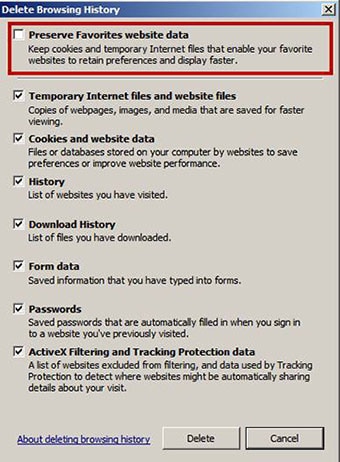
- Click "Delete"
- Close all Internet Explorer windows that you have open
- Open Internet Explorer and go to www.mouser.com
Step 3
Step 3: Reset Settings On Internet Explorer
- Open Internet Explorer
- Click on Tools > Internet Options
- Go to the Advanced tab
- Click on “Restore Advanced settings”
- Click “Reset”

- Close all Internet Explorer windows that you have open
- Open Internet Explorer and go to www.mouser.com
Step 4
Step 4: Remove MOUSER.COM From Compatibility View List
- Open Internet Explorer
- Click on Tools > Compatibility View Settings.
- If "mouser.com" is on the compatibility view list, remove it and go back through steps one and two again.”

- Close all Internet Explorer windows that you have open
- Open Internet Explorer and go to www.mouser.com